

Query multiple SQL Servers at once in SSMS: Central Management Server, local server groups, and their limits
How to run one query against a group of SQL Servers from SSMS using Registered Servers or a Central Management Server, what the results look like, and the limits you hit as the estate grows.
Published
SQL Server Management Studio can run one query against many servers at once. Most DBAs find it by
accident, and it does the job for a quick question asked of a handful of servers: which version is
everything on, who still has that login, how big is each tempdb. This guide shows both ways to set
it up and where it stops.
Two ways to group servers
Both live in the Registered Servers window (View ▸ Registered Servers, or Ctrl+Alt+G).
| Local server groups | Central Management Server (CMS) | |
|---|---|---|
| Stored | On your machine, in your SSMS settings | In msdb on a server you nominate |
| Shared with the team | No, though you can export and import them | Yes, everyone who registers the CMS sees the same groups |
| Authentication to the members | Windows or SQL Server authentication | Windows authentication only |
| Set up by | Anyone | Someone with rights in the CMS server's msdb |
Local server groups are the quick start. Right-click Local Server Groups ▸ New Server Group, then New Server Registration inside it for each server.
A Central Management Server is better for a team, because the groups live on a server rather than in each person's settings. Right-click Central Management Servers ▸ Register Central Management Server, then create groups and registrations under it. Microsoft's guide to creating a CMS and server groups covers the details.
The CMS groups are ordinary tables, so you can read them with T-SQL from the CMS server:
SELECT g.name AS GroupName, s.server_name AS ServerName
FROM msdb.dbo.sysmanagement_shared_registered_servers AS s
JOIN msdb.dbo.sysmanagement_shared_server_groups AS g
    ON g.server_group_id = s.server_group_id
ORDER BY g.name, s.server_name;
Running the query
Right-click the group and choose New Query. The window that opens is connected to every server in the group, and the status bar turns a different color and shows how many servers are connected.
Run an ordinary query. This one asks every server for its version, edition and number of user databases:
SELECT
    CAST(SERVERPROPERTY('ProductVersion') AS nvarchar(128)) AS ProductVersion,
    CAST(SERVERPROPERTY('Edition')        AS nvarchar(128)) AS Edition,
    (SELECT COUNT(*) FROM sys.databases WHERE database_id > 4) AS UserDatabases;
By default SSMS merges the results into one grid and adds a Server Name column, so each row says where it came from.
The behavior is set under Tools ▸ Options ▸ Query Results ▸ SQL Server ▸ Multiserver Results: whether to merge results, and whether to add the server name and login columns.
Where it stops working
Multi-server queries are a good tool for a quick look. These are the limits you meet when you try to use them for more than that.
- CMS members are Windows authentication only. A Central Management Server can only register servers with Windows authentication. That rules out SQL logins, and it rules out Azure SQL Database signing in with Microsoft Entra ID. Local server groups allow SQL logins, but they are not shared.
- Merging needs every server to return the same shape. If one server is on an older version and a
SELECT *returns a different set of columns, the merged results fail. Name your columns, or turn merging off and read one grid per server. - One database per window. The query runs in the same database name on every server. Many databases on each server (a tenant per database, say) means writing the loop yourself, inside the query.
- Nothing is remembered. When you close the window, the results are gone. There is no record of which servers answered, which ones errored, or what each returned.
- Errors scroll past. A failure on one server is a message among the others in the Messages tab. In a group of forty, it is easy to miss the one that failed.
- No safety net for changes. The window does not distinguish a production server from a test one.
An
UPDATEin a multi-server window goes to every server in the group the moment you press F5.
There is a workaround for the different-shapes problem: SQLCMD mode with a :connect per server gives
each server its own result set. It is covered in
SQLCMD mode and variables, explained, along with its own
trade-offs.
When to use something else
Use multi-server queries for read-only questions across a few servers you already have registered. Once the job is running changes across many databases, or you need to know afterwards what happened where, you want a tool that keeps the record for you.
SQL Multicast is built for that. Its target groups are lists of databases rather than
servers, so sql-prod-01 / Tenant_A and sql-prod-01 / Tenant_B are two targets, and a group can mix
on-premises SQL Server, Azure SQL Database and Azure SQL Managed Instance. Connections can use Windows,
a SQL login or Microsoft Entra ID.
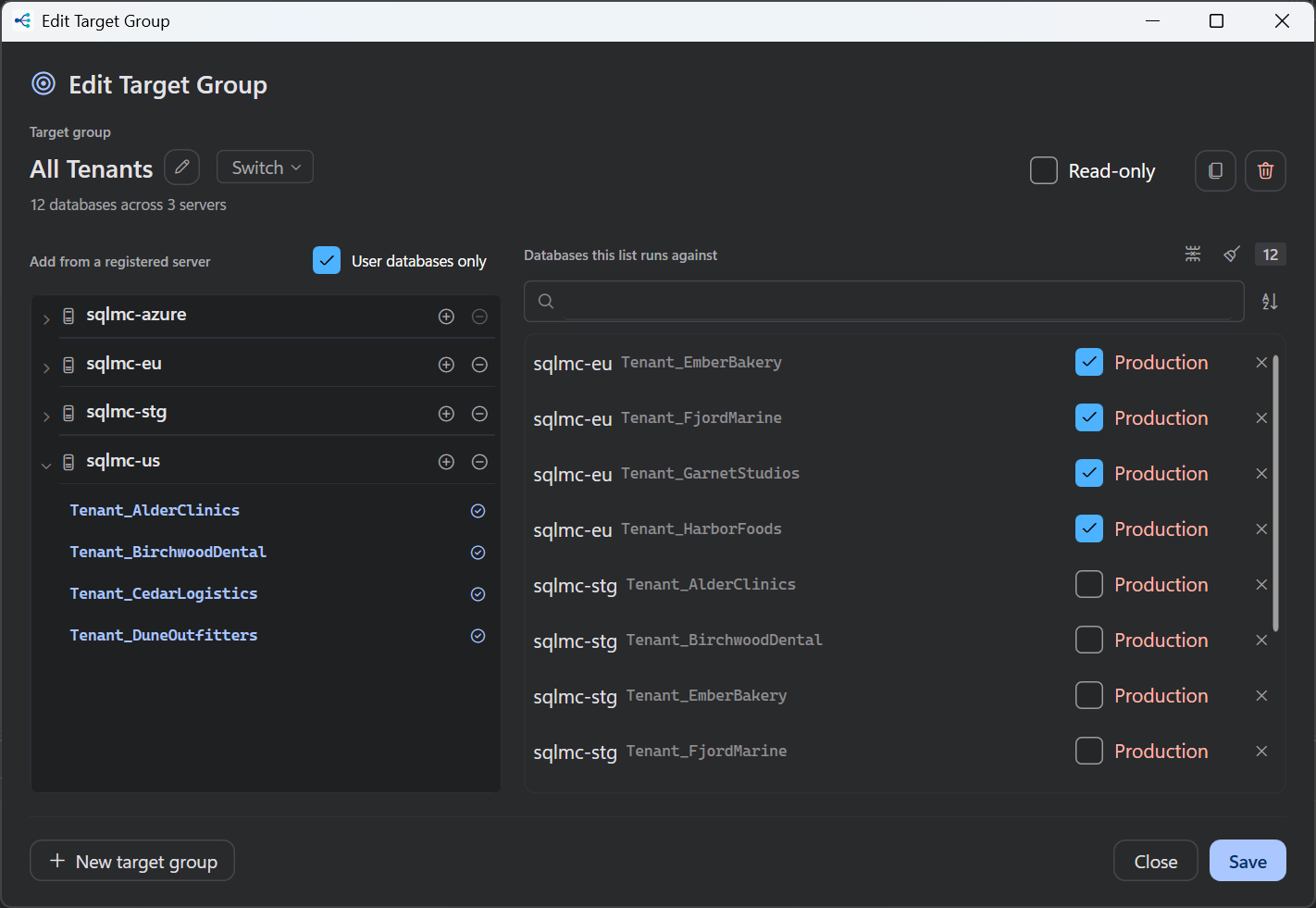
Each run is checked before it starts (scripts parse, variables resolve, every database answers), asks before touching anything marked production, and is kept in run history afterwards with every database's outcome. Results come back grouped by script or by database, so the one database that failed is at the top of the list instead of in the middle of the Messages tab.
It is free for personal use. Download it, or see how it compares in the best tools to run a SQL script against multiple databases.